I recently stumbled upon Google Story Builder and found it to be a great way to engage students in writing while applying an understanding of a concept or story line. If Google Story Builder is new to you, it basically allows users to create short video stories that appear to be done inside of a Google Document while collaborating with others. Students create characters, develop their lines that show the interaction, explanation, or plot, add music, and save as a video. In this post I wanted to share a short demonstration of how Google Story Builder works along with some ideas for using this collaborative writing tool in the classroom.
To begin, simply go to http://docsstorybuilder.appspot.com/. You will see a screen similar to this one:

Click the “Get started” button to start writing your story.

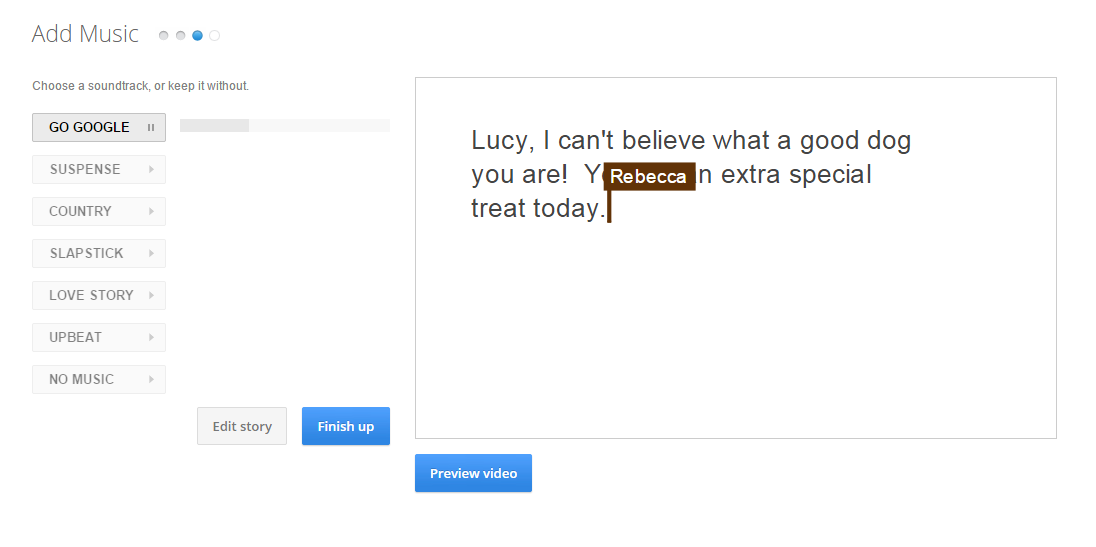 Now the writing begins. Simply type a sentence or two to start your story. As the image below shows, I wrote “Lucy, I can’t believe what a good dog you are.” From there, I switched to my daughters and had their replies.
Once finished, I chose to “Add music” and then “Finish up.”
Educational Relevance
My first thought after using Google Story Builder is that students will love it. The program facilitates idea building and story writing, but on top of that, encourages peer editing, self-correction, and most of all, collaboration! Google Story Builder allows children to discuss, create, edit and share ideas on one site. The site allows the children to go through the writing process in one step. They write, edit, collaborate and publish all within one site! I can see this tool being used at almost any grade level and content area. Students can use to demonstrate their knowledge on a variety of topics while working independently or in groups. I also like the fact that the end result can be shared with a larger audience, which is a key component in getting students to put more time and effort into writing. Here is an example of a student version of Google Story Builder
http://goo.gl/ynIe5w
http://goo.gl/ynIe5w
What ways can you or your students use Google Story Builder?
Important things to know:
Cannot edit once published- Once the story is published, it isn’t accessible to revise.
Cannot Save- If the students are going to use the same story to enhance their writing, they may want to copy and paste the story into a doc to save for the next topic. They can then re-insert the text into the appropriate character’s box and edit it as necessary.
It is a single sitting application- The story must be published within a single day, as the app doesn’t allow for saving.
Once finished with their story, they will email the link created to their teacher and the other students in the class. This way, the students can view their peer’s stories. The groups will be expected to present and discuss their stories to the class.
Be sure to check out their samples on the start page of Google Story Builder.
Important things to know:
Cannot edit once published- Once the story is published, it isn’t accessible to revise.
Cannot Save- If the students are going to use the same story to enhance their writing, they may want to copy and paste the story into a doc to save for the next topic. They can then re-insert the text into the appropriate character’s box and edit it as necessary.
It is a single sitting application- The story must be published within a single day, as the app doesn’t allow for saving.
Once finished with their story, they will email the link created to their teacher and the other students in the class. This way, the students can view their peer’s stories. The groups will be expected to present and discuss their stories to the class.
Be sure to check out their samples on the start page of Google Story Builder.
